How to Configure L2TP VPN Connection on Windows Mobile
From your home screen, tap "Start" menu then tap "Settings"
Go to "Connections" and click on "Connections" once more
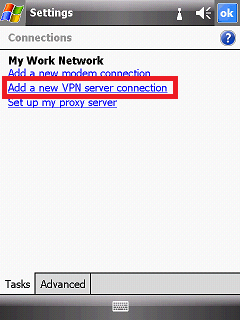
Select "Add a new VPN server connection"
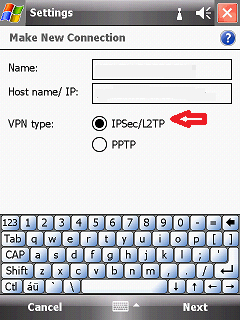
For "Name" type the server address you would like to connect to (e.g: fr.waselpro.com)
For "Host name/ IP" type the server address again (fr.waselpro.com)
For "VPN type", choose "IPSec/L2TP"
For "Authenticate IPSec/L2TP connections using", choose "A pre-shared key" and insert: sharedsecret
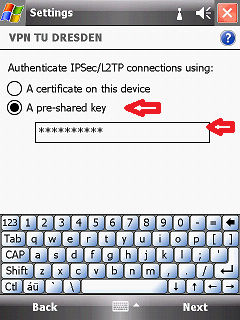
Click "Next"
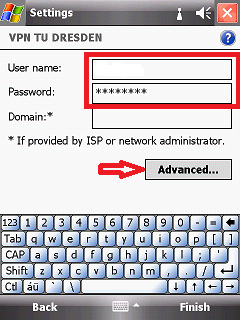
For "Username", type your WASEL Pro's registered e-mail
For "Password", type your WASEL Pro's password
Click "Advanced" and make sure that "TCP/ IP" are default.
Now, switch to "Servers" and make sure all domains are empty
Click "OK" then "Finish"
Click "Edit my VPN servers" then tap the connection you just created, hold it then choose "Connect" from the popup window.
It will take a few seconds to connect and you'll see the connection's icon in the top bar.
To make sure you're connected, open www.waselpro.com and you'll see that your IP address has changed.