How to Delete Browsing History in Google Chrome
Open your browser, click on the "Customize and control Google Chrome" button (located in the upper-right corner) then select "History".
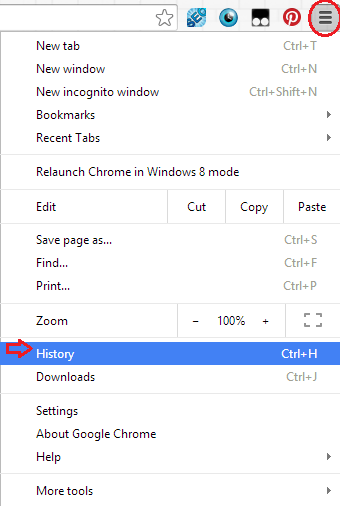
(Or you can just press (Ctrl+H) to open History menu and skip the previous step)
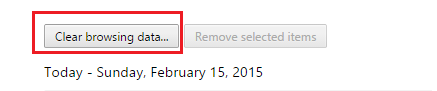
Click on "Clear browsing data"
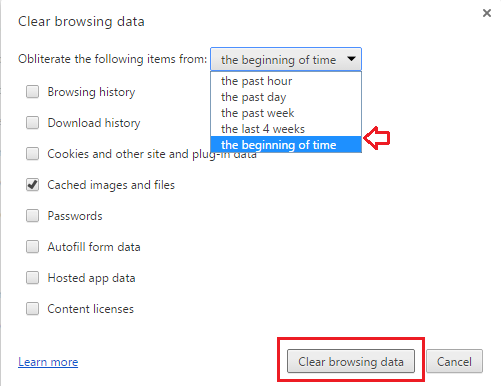
In the dropdown menu, select the beginning of time.
Select the "Cached images and files" check-box. Uncheck everything else to avoid deleting data unintentionally.
Click the "Clear browsing data" button.
Chrome will work for a moment, and then the process will be done. You've successfully cleared Chrome's Cache!